Legend labeling with macros
The legend labels can be very individually adapted. You already have some templates that you can use directly or revise. You can make all settings and changes in the opened drop-down menu.
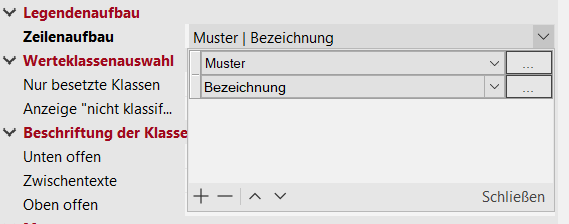
There you can add further attributes with the + or remove them with the -. With the up and down arrows you can adjust the order of the attributes.
Individual settings can be made using the [...] function. A new dialog box opens in which you can now make your manual changes.
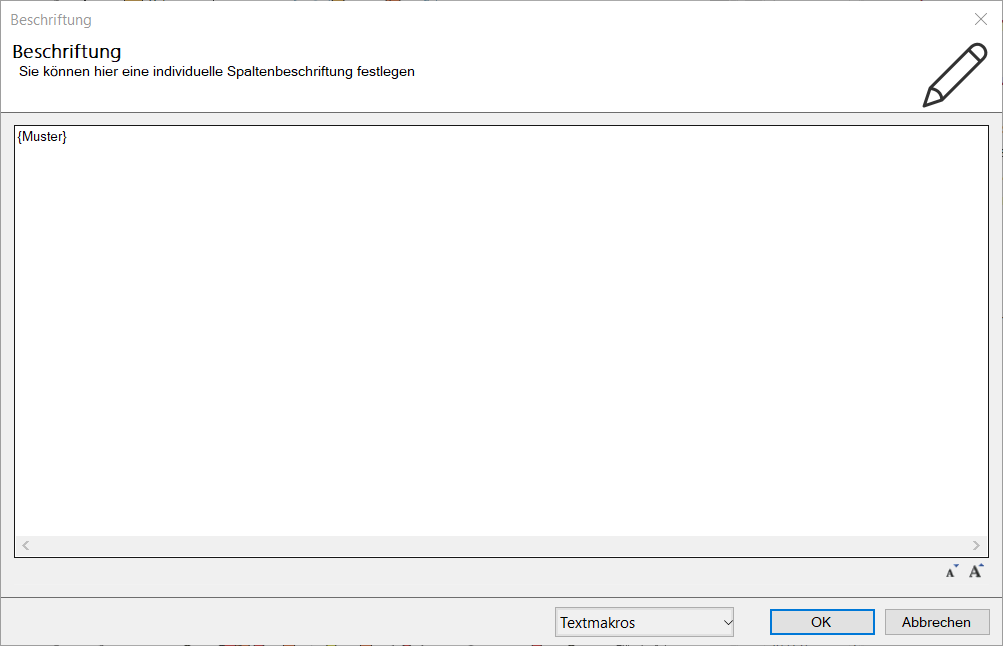
You can add static text of your choice in the text field. All values in {} are text macros and refer to a corresponding entry and adapt dynamically. The figure above shows an example of the text macro for the pattern. The corresponding form or color field is added to each class.
I can add more macros via text macros. You can find further explanations about the text macros here.
With "|" you can force multiple columns (e.g. {number}|{classification.number}). However, these will be displayed as separate columns the next time you edit. Again, the class boundaries are treated separately and again displayed as a single entry.
The font size can be adjusted via the A's (lower right corner).
When you are satisfied with the settings, close the editing with Close.
Your setting is saved and is now available for selection. If the setting of a column uses one of the standard macros, this is displayed as plain text in the list. For manually edited macros, the macro content is displayed including the macro brackets
Here are some important useful tips:
-
If you place several macros in one column (e.g. {number} of {classification.number}), then a coherent text is built from them, without column division.
-
The "Pattern" macro is also a special case. The pattern must always be in a separate column.
-
By default, brackets are placed around the Number and Sum macros. With [...] you can remove the brackets, but then it is no longer the default macro.
- The special treatment of the class boundaries serves the purpose of more convenient operation. It only works as long as the macro you create remains unchanged. When changes are made, it is divided into 3 individually editable columns.
