Search

|
In principle you can search easymap in |
Depending on the search modes, you can set the level to be searched. For this purpose, easymap offers the following search modes:
- None Search
- Search Suggestion
Search levels
Geography level
The geography layer contains all map bases that are included in this project. If, for example, a map contains the postal control areas as a map base, it is possible to search for postal codes and place names.
Address level
Addresses are searched for via Microsoft® Bing™ Maps. The address option is only available when the Microsoft® Bing™ Maps street map is enabled as a background map. When you search for a specific address, matching suggestions are made as you type. Addresses that are outside the default view will not be found. The extent of the standard view corresponds to that in the easymap map base used.
Example: If you search for "New York" in a map folder that only shows Germany, this place will not be found.
Data level
If you want to search for your own data, you search in the data level. The tables of the project are searched and evaluated according to the entered keyword.
Search modes
No search
If you want to disable any search options in easymap explorer, you can switch to the global search mode to none umstellen. Even if the search is still allowed in the individual analyses and tables, it is prohibited. The search icon is automatically hidden.
Search Suggestion
The suggestion search allows you to search in all three levels at the same time. Just open the search icon and type in your search value. You will be shown a list of all results, sorted by the individual levels. If there are too many hits for one search, the best results will be displayed. Refine your search to get the right result.
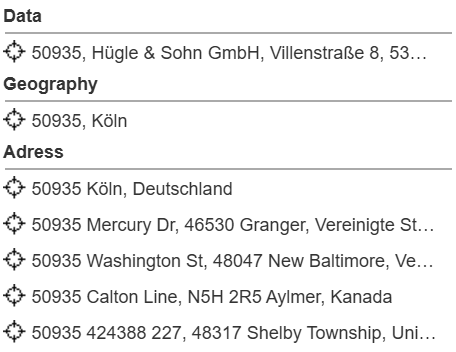
Click on the crosshairs to jump directly to the position on the map.
