Search for customers within a radius
Feel free to watch our video tutorial on reachability analytics.
In this exercise, we will show you how to determine the points (e.g., customers) that are within a certain radius of points at another level (e.g., salespeople). To do this, we will use symbol and reachability analysis functions and create a query to clearly tabulate the results.
 1. Data basis
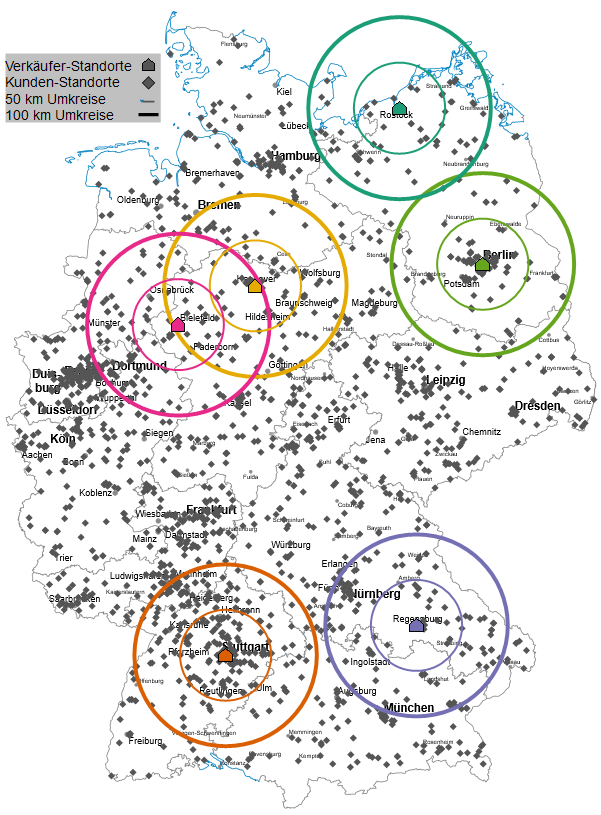
This map analysis requires customer, seller, and location data. For the radius search, a position determination using geographical coordinates provides the most accurate results. An assignment by territory units, such as postal codes, is also possible. The following example uses coordinates as a basis (see Fig. 2).
Make sure that a primary key is assigned during import, since the Lies in... Function a unique assignment is necessary. The Accessibility analysis must also not be based on the table in which the lies-in column is to be inserted.
If you're unsure how to import their data, click here.
2. Create Customer and Seller Locations
After you have inserted the appropriate base map, create your customer and vendor locations. To do this, perform a symbol analysis for each.
3. Define a radius around seller locations
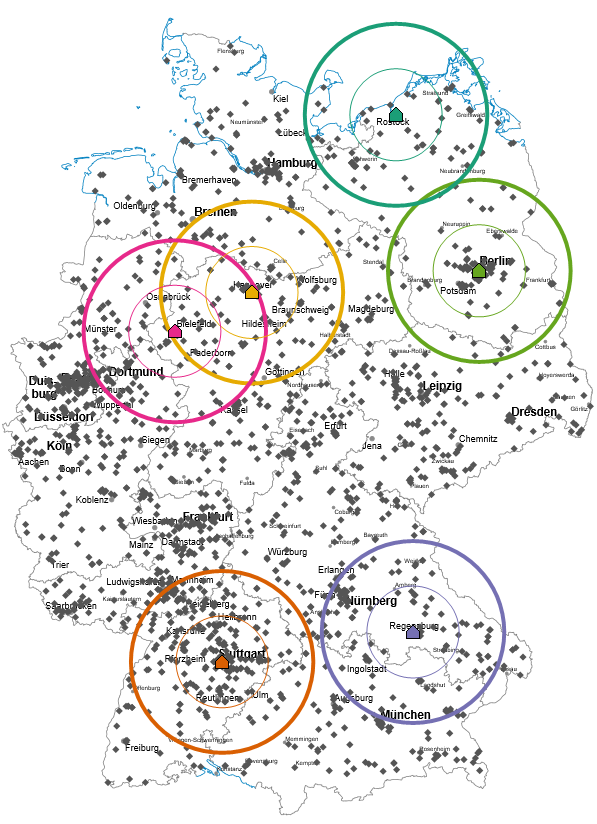
Now circles are to be created around the sales locations to which the customers can later be assigned. To do this, carry out an accessibility analysis. If you want to enter several radiuses, simply repeat the accessibility analysis and adjust the radius accordingly. It can be useful for further processing to extend the names of the accessibility analyses in the Contents control window by the specified radius so that you have an overview later.
If you have coordinates as well as postal codes for your seller locations, make sure that you use the same value for locations and circles otherwise deviations will occur.
4. Relations between customer and seller
The assignment of the customers in the radius of the sellers can now be displayed in the table.
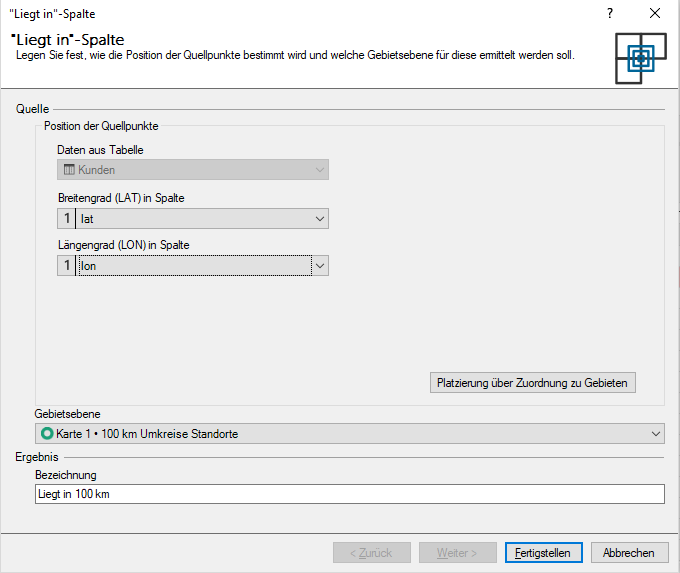
To do this, click on the fx button in the toolbar of your customer table and select the Located in function.
In the dialog window you can then select your previously created circles under Area Layer and click on finish.
A new column is then added to your customer table, which lists the radius to which a customer has been assigned. As you can see, the radii may overlap. This leads to multiple assignments in the table query.
To view this overlap set separately, you can filter it out. To do this, click in Table window on the title of the newly calculated column and leave only #ambiguous selected. You can also use the same procedure if you only want to display certain perimeters.
Number of customers in seller radii
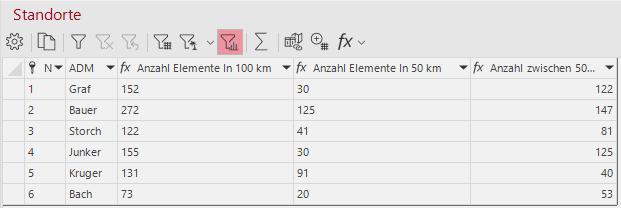
If you want to know the number of customers in the seller perimeters, first access the table with your seller locations. Then, again in the toolbar of the table window, click the fx button and select the Number of items in... function. In the dialog box, note that you select symbol analysis of your customer locations as the source and your perimeters as the level.
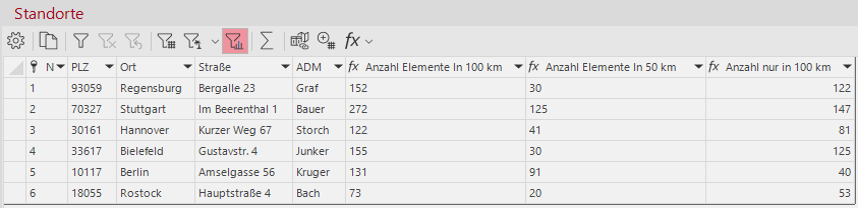
If you then click on Finish you will get a column in your seller location table showing the number of customers per circle.
If you have created several perimeters, you must note that the larger perimeters also include the customers in the smaller perimeters.
To display the additional number of customers in the outer radius in your tables, you must calculate a new column. Click the fx-Button and select Calculated column.... Enter the following calculation in the formula window:
cval([Number of elements In 100 km]) - cval([Number of elements In 50 km])
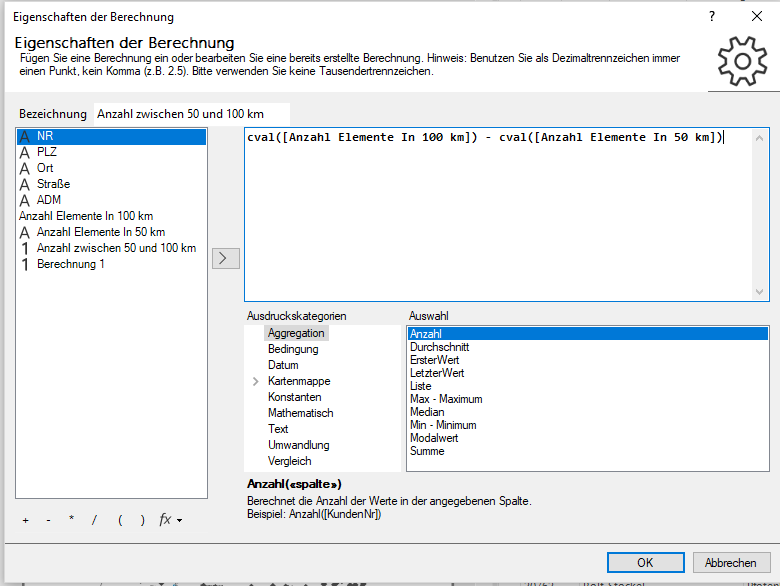
You will then receive a column containing only those customers who are between 50 and 100 km away from the seller.
5. Select postal code areas within a certain radius
If you want to know which postal code areas (or municipalities, RPI cells or segments) are in your circles, you can do this with a query.
To do this, click on Data > New query... in the main menu. Then add the area table of your postal code areas under Geographic data and close the selection window.
In your query, double-click on the column Number of the area table. Then click on Add column > Located in... . In the window for the Located in..-Calculation select your circles for the Area Layer and click Finish. If you then click Ok, your query will be executed and a table with the results will open on the right side. Via the Located in column you can now filter by individual circles to display the postcode areas for each circle.
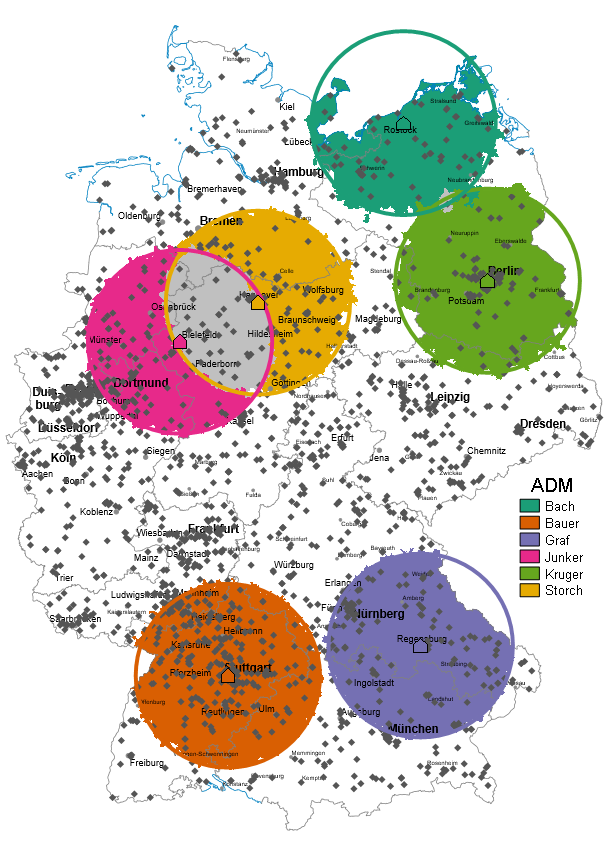
If you want to highlight the result in color, you can perform an area shading for your query.
Click on Analyses > Area shading... and select your query at Data from table and finish your analysis.
In the properties of the analysis, make sure that the data column Located in column is selected and that the Classes > Classification Atribute is selected.
6. Alternative radius search via selections.
A faster (ad-hoc) analysis of customers in the vicinity of locations can also be carried out by means of selections.
If customer and seller locations are drawn as symbols on the map, you can mark all points of a plane within a certain radius using the mark button Radius in the toolbar.
To select the points of the correct layer, it is recommended to select the appropriate Selection layer and fix it by clicking on the button with the lock symbol.
If you have selected the selection mode Radius, click with the left mouse button on a sales location on the map. A dialog box opens in which you can specify the radius (in km) for the selection.
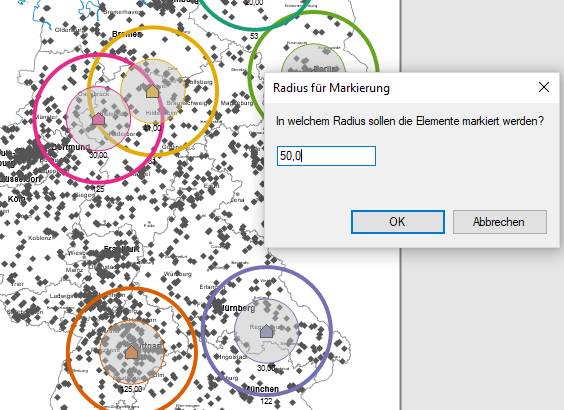
Now all customers are marked in the radius of this seller in the map as well as in the customer table. Click the Filter by selection button in the customer table. With this button you can copy the filtered table to the clipboard and import it again as a new table.
